
Top lead generation tips for LinkedIn Sales Navigator
Top lead generation tips for LinkedIn Sales Navigator
TL;DR:
- Precise targeting using advanced filters and clear ICP defines successful LinkedIn lead generation.
- Focusing on high-intent signals like job changes and recent activity boosts response rates.
- Small businesses can access discounted Sales Navigator licenses to scale effective outreach affordably.
LinkedIn is noisy. Hundreds of messages land in your prospects’ inboxes every week, and most get ignored. The difference between wasted budget and a full pipeline often comes down to precision, not volume. Sales Navigator gives you 40+ advanced filters including Boolean operators, job change alerts, content signals, and company headcount growth to help you cut through that noise. This guide walks you through the expert-backed steps to build higher quality lead lists, personalize your outreach, and get more replies without spending more money.
Table of Contents
- Understand your ideal customer profile (ICP)
- Master advanced search and filtering
- Prioritize high-intent outreach for better response rates
- Craft cost-effective and scalable outreach workflows
- Why most LinkedIn lead generation misses the mark—and how to stand out
- Get the most from Sales Navigator with cost-saving solutions
- Frequently asked questions
Key Takeaways
| Point | Details |
|---|---|
| Define your ICP | A clear ideal customer profile is essential for targeted, efficient lead generation. |
| Use advanced filtering | Layer Boolean logic and filter options to pinpoint the best prospects quickly. |
| Prioritize high-intent leads | Engaging job changers and active posters can produce up to three times more replies. |
| Scale outreach smartly | Organize, template, and track outreach to save time and minimize costs. |
| Invest where it counts | Choose the right Sales Navigator tier and tools to boost results without overspending. |
Understand your ideal customer profile (ICP)
Every wasted InMail and ignored connection request usually traces back to the same root cause: a fuzzy picture of who you are actually trying to reach. Before you touch a single filter in Sales Navigator, you need a sharp, documented ICP. This is not a nice-to-have. It is the foundation that every tactic in this guide depends on.
Your ICP should cover the specific attributes that distinguish your best-fit customers from everyone else. Think about the basics of lead generation basics: who buys fastest, who churns least, and who refers others. Then translate those traits into Sales Navigator filter language.
Here are the core attributes to define:
- Job title and seniority level (e.g., VP of Sales, Director of Marketing, Founder)
- Industry or vertical (e.g., SaaS, healthcare, logistics)
- Company headcount range (e.g., 50 to 500 employees)
- Geography (region, country, metro area)
- Buying signals (recent job change, company funding, technology stack, posted content in last 30 days)
Once you have your ICP written down, map each attribute to a Sales Navigator filter. This is where the platform earns its cost. The LinkedIn Sales Navigator guide outlines how to combine these filters to build precise prospect lists instead of bloated, low-quality ones.
Boolean logic takes this further. You can search for “demand generation” OR “growth marketing” within the keywords field to capture multiple related roles at once. Combine that with a headcount filter of 50 to 500 and a geography filter, and your list shrinks from thousands of vague matches to a few hundred genuinely relevant prospects.
Pro Tip: Build two or three ICP variations with slightly different title combinations or company size ranges. Run them in parallel for four weeks and track which version gets the most positive replies. The data will show you exactly which ICP is worth doubling down on.
Master advanced search and filtering
Knowing your ICP is step one. Translating it into a Sales Navigator search that actually surfaces the right people is step two. This is where most users leave serious efficiency on the table.
Here is a step-by-step approach to building a high-precision search:
- Start with title keywords using Boolean logic. Use quotes for exact phrases (“VP of Marketing”), OR to expand (“Head of Sales” OR “Sales Director”), and NOT to exclude irrelevant roles (NOT “Intern”).
- Layer in company filters. Set headcount to your target range, filter by industry, and add company growth rate if your ICP favors fast-scaling businesses.
- Add trigger filters. Filter for prospects who changed jobs in the last 90 days or who have posted on LinkedIn recently. These signals indicate active, engaged buyers.
- Use the “Technologies Used” filter to find companies running specific tools that complement or compete with your product.
- Save the search. Sales Navigator will alert you when new people match your criteria, turning a one-time effort into an ongoing pipeline feed.
Boolean mastery means using quotes, AND/OR/NOT operators, and parentheses for grouping so you can layer filters precisely. Check the navigator filter updates to stay current on new capabilities that can boost conversion rates significantly.

Here is a quick reference table for common filter combinations:
| Goal | Filter combination | What it reveals |
|---|---|---|
| Find decision-makers at growing startups | Title: Director+ AND headcount: 50-200 AND company growth: 10%+ | Fast-scaling teams with budget authority |
| Reach active buyers | Posted on LinkedIn: last 30 days AND job change: last 90 days | High-intent, visible prospects |
| Target specific tech stacks | Technologies: [tool name] AND seniority: Senior/Manager | Prospects already invested in your category |
| Expand into new verticals | Industry: [new vertical] AND title matches ICP | Market expansion with ICP discipline |
For more precision on building these combinations, the advanced search tips and sales workflow automation resources walk through real examples.
Pro Tip: Share your top-performing saved searches with teammates. If one rep finds a filter combination that generates strong replies, that insight should become a team asset, not stay siloed in one account.
Prioritize high-intent outreach for better response rates
Building a list of 500 filtered prospects feels productive. But if you treat all 500 the same way, you will get average results. The real leverage in Sales Navigator is identifying the subset of your list that is actively in-market right now.
High-intent leads are prospects showing behavioral signals that suggest they are open to a conversation. These are not random contacts who fit your ICP on paper. They are people whose recent actions indicate movement, change, or active engagement.
Focusing on high-intent prospects changes everything. Job changers and recent posters generate up to 3x more replies compared to static, untriggered contact lists.
Think about why that is. A VP of Sales who just started a new role three months ago is actively building their team, evaluating tools, and making purchasing decisions. A marketing director who posted content last week is clearly active on the platform and paying attention. These people are warm without ever having spoken to you.
Here are the top signals to watch for in your saved lists:
- Job change in the last 90 days: New roles bring new budgets and new vendor evaluations.
- Posted content in the last 30 days: Active posters are engaged on LinkedIn and more likely to respond.
- Company headcount growth: Scaling companies are buying, not cutting.
- Recent company news or funding: Funding rounds and expansions create immediate buying needs.
- Shared connections: A mutual contact gives you a warm intro angle.
The outreach message strategies that work best reference these signals directly. Mentioning a prospect’s recent post or congratulating them on a new role personalizes the message in a way that generic templates simply cannot replicate. The guide on effective LinkedIn outreach covers this in practical detail.
Start each week by reviewing your saved lead alerts and prioritizing the contacts who triggered one or more of these signals. That short list should get your most thoughtful, personalized messages first.
Craft cost-effective and scalable outreach workflows
Tactics only pay off when you have a system behind them. Without a repeatable workflow, even the best-filtered list becomes a scattered effort that fades after two weeks. Here is how to build one that scales without blowing your budget.
First, compare your plan options. Small businesses often debate between Sales Navigator Core and Team:
| Feature | Core (individual) | Team |
|---|---|---|
| Advanced search and filters | Yes | Yes |
| Saved searches and lead alerts | Yes | Yes |
| InMail credits per month | 50 | 50 per seat |
| TeamLink connections | No | Yes |
| CRM sync and integrations | Limited | Full |
| Best for | Solo reps, early-stage testing | Growing sales teams |
For small businesses starting with Core, the recommendation is to test over one to three months before deciding whether to scale up to Team. The prospecting strategies that work at the individual level can often be replicated and shared once you upgrade.
Here is a simple workflow to set up:
- Build your filtered list using your saved ICP search.
- Tag leads by priority (High, Medium, Follow-up) using Sales Navigator’s tag feature.
- Write three message templates: initial outreach, follow-up at day 5, and a soft close at day 10.
- Set calendar reminders for each follow-up stage so nothing slips.
- Log responses and outcomes in a simple spreadsheet or your CRM to track what messaging resonates.
For B2B pipeline management, integrating these tags and notes directly into your CRM keeps your pipeline clean. The workflow examples from other small businesses show how even a lean two-person team can run structured outreach without expensive automation tools.
Why most LinkedIn lead generation misses the mark—and how to stand out
Here is the uncomfortable truth: most people using Sales Navigator are doing it wrong. Not because the tool is hard, but because they automate too fast and personalize too little. They build a filtered list, drop it into a sequencing tool, and fire off 200 identical messages. Then they wonder why response rates sit below 5%.
The pros who consistently win on LinkedIn treat Sales Navigator as a research tool, not just a contact database. They use small business B2B growth as a long game, building real familiarity with each segment before reaching out.
The contrarian reality is this: a list of 30 hyper-targeted, signal-rich prospects contacted with personalized, relevant messages will outperform a list of 500 generic matches every single time. Quality beats volume, even when volume feels more scalable. Automation has its place in follow-up sequences, but the first touch should never feel like a robot wrote it. That first message is your only shot at a real conversation.
Get the most from Sales Navigator with cost-saving solutions
If you want to hit the ground running with everything above, here is how to do it without blowing your budget.
Putting these tactics into practice requires access to the full power of Sales Navigator. The problem for many small businesses and solo reps is that the standard license price is hard to justify, especially when you are still testing.
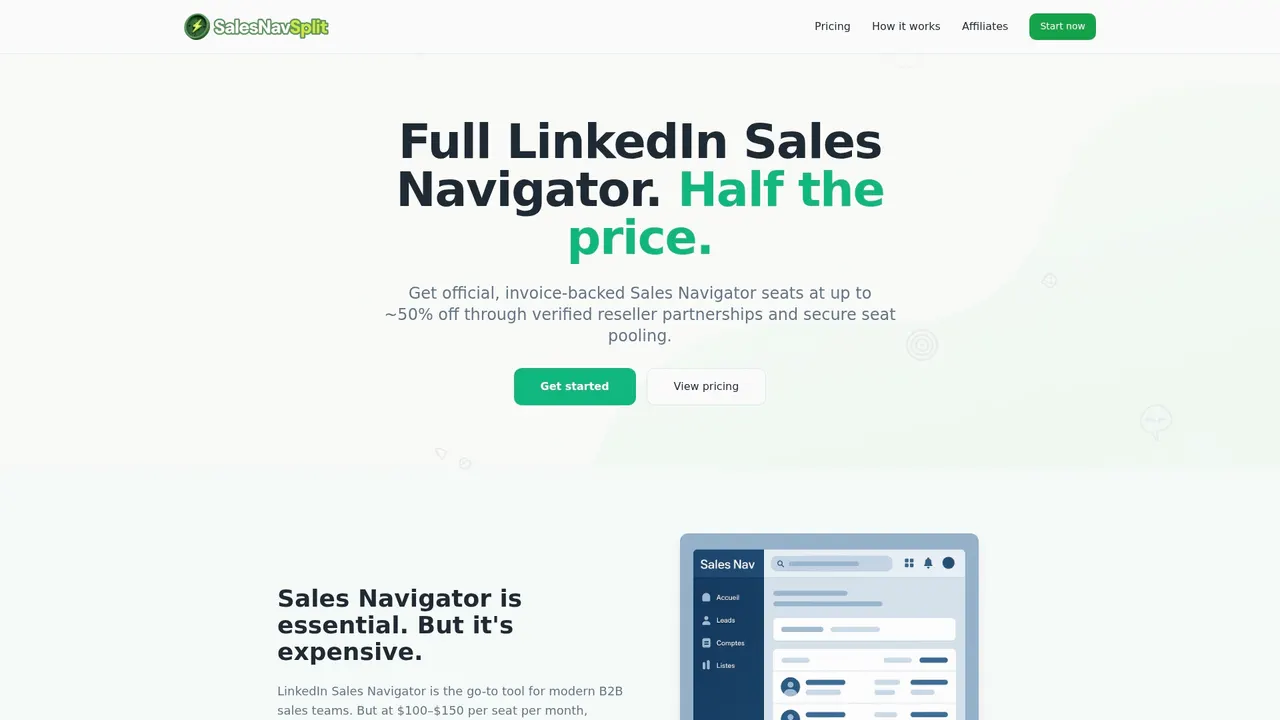
That is exactly where discounted Sales Navigator seats make a real difference. At salesnavsplit.com, you can access official, verified Sales Navigator licenses at roughly 50% off standard pricing, activated within two business hours European time through legitimate reseller partnerships. If you want to understand how this works before committing, the breakdown of how to save on licenses through a verified reseller explains the process clearly. Same tool, same features, half the cost.
Frequently asked questions
What is the first step for lead generation with LinkedIn Sales Navigator?
Start by defining your ideal customer profile, then use Sales Navigator’s 40+ search filters to narrow your search to the most relevant prospects.
How can I increase LinkedIn lead response rates?
Focus on high-intent prospects such as job changers and recent posters, who generate up to 3x more replies compared to static, untriggered contact lists.
What filters should I use on Sales Navigator?
Prioritize filters for job title, company size, industry, seniority, location, and key triggers like recent activity and job changes to surface the most relevant leads.
Should small businesses choose Sales Navigator Core or Team?
Start with Core to keep costs low, then scale to Team once your outreach is consistent. Test over one to three months before committing to the higher-tier plan.
What’s the best way to track and manage Sales Navigator leads?
Use Sales Navigator’s built-in tags, saved leads, and alert features alongside 40+ filters to stay organized and run structured, scalable outreach workflows.
Recommended
- Blog - SalesNavSplit
- What is LinkedIn Sales Navigator? B2B prospecting guide - SalesNavSplit Blog
- Streamline your sales prospecting workflow with Sales Navigator - SalesNavSplit Blog
- Top sales engagement tips to boost LinkedIn results - SalesNavSplit Blog
- From Lead to Booked: How Autonomous AI Agents for B2B Handle the “Grunt Work” While You Sleep – AI Management Agency