
Track sales engagement in LinkedIn Sales Navigator
Track sales engagement in LinkedIn Sales Navigator
TL;DR:
- Effective sales engagement tracking involves measuring meaningful interactions, such as replies and booked meetings, rather than activity volume alone. Using core tools like LinkedIn Sales Navigator and CRMs, teams should consistently log outreach efforts, responses, and conversions to refine their approach. Regular analysis of pipeline impact and adjusting outreach strategies lead to higher engagement and improved sales results.
Most sales professionals spend hours crafting outreach, sending connection requests, and following up on InMails, only to realize weeks later they have no idea which activities actually moved deals forward. The frustration is real: your pipeline feels active, but you’re essentially guessing what’s working. This guide solves that problem by walking you through a proven, step-by-step framework to measure and improve what sales engagement means inside LinkedIn Sales Navigator, so every action you take has a measurable purpose.
Table of Contents
- Understand what sales engagement really means
- Get your tracking tools and data ready
- Step-by-step: Tracking engagement in LinkedIn Sales Navigator
- Avoid common tracking mistakes and fix data gaps
- Analyze your results and refine your engagement
- What most guides miss about tracking sales engagement
- Supercharge your LinkedIn sales tracking with SalesNavSplit
- Frequently asked questions
Key Takeaways
| Point | Details |
|---|---|
| Focus on pipeline impact | The most valuable sales engagement metric tracks movement from first alert through meeting booked. |
| Use LinkedIn hybrid outreach | Combining connection requests and InMail yields higher reply rates and wider reach for B2B prospecting. |
| Automate your tracking | Link Sales Navigator data with your CRM whenever possible for reliable, actionable insights. |
| Review and refine | Regularly analyze your engagement data to optimize messaging and outreach strategies. |
Understand what sales engagement really means
Before you touch a dashboard or build a spreadsheet, you need a sharp definition of sales engagement. Many teams confuse activity volume (sends, clicks, profile views) with actual engagement. They’re not the same thing.
In practical B2B terms, sales engagement means a two-way interaction that moves a prospect closer to a decision. A profile view does not qualify. A reply does. A meeting booked definitely does. Understanding this distinction keeps your tracking focused on outcomes rather than output.
The core metrics that actually matter are:
- Alert triggers: Job changes, company news, and funding events in Sales Navigator that signal the right moment to reach out
- Message replies: Responses to connection requests, InMails, or follow-up messages
- Meetings booked: Calendar invites accepted as a result of your outreach
- Pipeline conversion: How many engaged prospects move to an active opportunity in your CRM
“The goal isn’t to collect numbers, it’s to understand movement. A prospect who replies but never books is not the same as a prospect who books and shows up.”
The smartest thing you can do early is separate signal from noise. Reply rate sounds important, but on its own it tells you very little. What really matters is the full journey: alert to engagement to meeting to deal. According to LinkedIn Sales Navigator metrics research, tracking pipeline conversion using both Usage Reporting and CRM data gives you the most complete view of actual ROI.
Pro Tip: Flag any metric that does not directly connect to a meeting booked or a deal advanced. If it cannot influence your behavior or your pipeline, it is noise. Focus your weekly reviews on the metrics that change how you act.
For deeper context on applying these principles, check out these LinkedIn sales engagement tips that reinforce the signal-versus-noise approach across your whole outreach workflow.
Get your tracking tools and data ready
With the right definition and metrics in place, you need core tools and reliable data before you can systematically track engagement and see results.
Here is a quick overview of the tools that work together for effective tracking:
| Tool | Purpose | Cost level |
|---|---|---|
| LinkedIn Sales Navigator | Alerts, InMail, lead lists, Usage Reporting | Paid |
| CRM (Salesforce, HubSpot, Pipedrive) | Pipeline tracking, deal stages, contact history | Paid or free tier |
| Spreadsheet (Google Sheets, Excel) | Manual logging, custom reporting, starter setups | Free |
| LinkedIn CRM sync or Zapier | Automated data transfer between platforms | Low to mid cost |
| Sales Navigator Usage Reports | Team-level activity and engagement summaries | Included in Navigator |
Not every team starts with full CRM integration, and that is completely fine. A well-structured spreadsheet can handle early-stage tracking. What matters is that you track the right data points consistently from day one:
- Date and type of outreach (connection request, InMail, follow-up message)
- Prospect name, company, title, and list they belong to in Sales Navigator
- Whether the outreach was accepted or replied to (and on which day)
- Whether a meeting was booked and the date it occurred
- Deal stage in CRM after first meaningful engagement
For CRM integration, LinkedIn Sales Navigator connects natively with major platforms. You map contact records, and any reply or InMail thread automatically updates the contact timeline. For manual setups, log each action in your spreadsheet within 24 hours of it happening. Delayed logging leads to data gaps that corrupt your analysis later.
The lead generation tips for LinkedIn that top-performing teams use almost always include a structured data capture process before any outreach begins, not after.
Consistently tracking pipeline conversion from alerts through to meetings, using both your CRM and Sales Navigator’s built-in reporting, is what separates teams that guess from teams that grow.

Step-by-step: Tracking engagement in LinkedIn Sales Navigator
Once your systems and tools are in place, you can begin the actual work of tracking engagement. Here is exactly how to do it inside Sales Navigator.
-
Build and label your lead lists. In Sales Navigator, create separate lists for cold outreach, warm prospects, and active opportunities. Label them clearly so your alert feed and engagement data stay organized by campaign or segment.
-
Set up account and lead alerts. For every saved lead or account, turn on job change alerts, company news alerts, and engagement alerts. These signals tell you the optimal moment to reach out and serve as the starting point of your engagement tracking timeline.
-
Send your first outreach and log the action. Whether you use a connection request or an InMail, record the date, type, and personalization angle in your tracking sheet or CRM immediately. Note which alert or trigger prompted the outreach.
-
Monitor for replies and update your records. Check Sales Navigator messages daily. When a reply arrives, log the response date and categorize the reply as positive, neutral, or negative. A neutral reply (“Thanks, but not right now”) is still engagement and belongs in your data.
-
Book the meeting and mark the conversion. When a meeting is booked, this is your most important data point. Link the meeting back to the original outreach date, the method used, and the number of follow-ups it took. This is your conversion data.
-
Run weekly Usage Reports. Inside Sales Navigator, pull your Usage Report every Friday. Review InMail response rates, connection acceptance rates, and saved lead engagement levels. Transfer key numbers into your master tracking sheet.
One of the most useful decisions you will make is which outreach channel to prioritize. Here is how the main options compare:
| Channel | Reply rate | Cost per message | Volume limits | Best for |
|---|---|---|---|---|
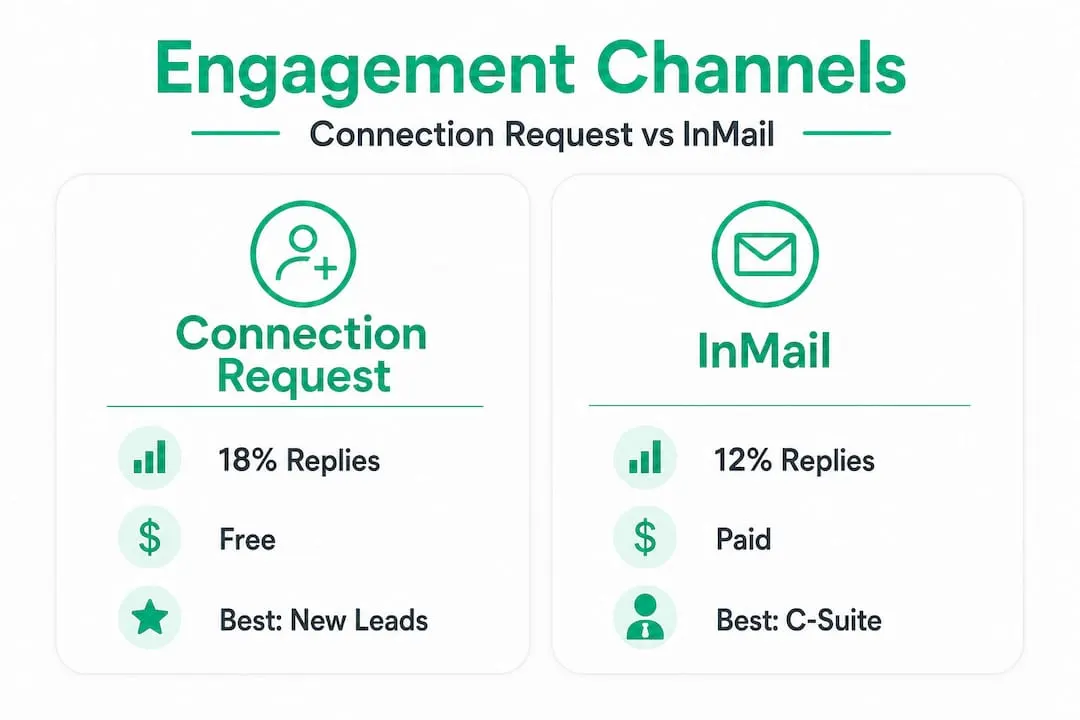
| Connection request | 18% average | $0 | Medium | Warm prospects, mid-level titles |
| InMail | 12% average | ~$1.50/message | Credit-based | C-suite, no shared connections |
| Hybrid (connections first, InMail backup) | Highest overall | Low-moderate | Flexible | Most B2B campaigns |
Research on connection requests vs InMail shows that connection requests outperform InMails on reply rate (18% vs 12%) and cost, but InMails are essential when you need to reach decision-makers at the C-suite level without a mutual connection. The hybrid approach, leading with connections and backing up with InMails for non-responders, consistently produces the best overall engagement numbers.
For teams running multi-touch campaigns, these smart LinkedIn strategies and proven LinkedIn lead generation methods cover how to sequence these channels for maximum results.
Avoid common tracking mistakes and fix data gaps
Even with all the best tools and steps in place, small errors can ruin your tracking. Here are the five most common mistakes and how to fix them:
-
Incomplete logging: Skipping a day of logging creates gaps that make your conversion data unreliable. Fix it by blocking 10 minutes at the end of every day specifically for data entry.
-
Not connecting your CRM: Tracking in Sales Navigator without syncing to your CRM means meetings and deal stages stay invisible in your engagement data. Even a basic Zapier connection between the two solves this immediately.
-
Ignoring the hybrid channel approach: Sticking exclusively to InMail or only sending connection requests means you are leaving reply rate improvement on the table. Rotate your approach based on the data you track.
-
Treating reply rate as the main KPI: A high reply rate with no meetings booked is a sign your message resonates but your offer or call to action does not. Track further down the funnel.
-
Failing to audit your data monthly: Old records with missing fields pile up fast. Set a monthly calendar reminder to clean your tracking sheet and fill any gaps using Sales Navigator message history.
Pro Tip: Use a Zapier automation or a CRM workflow to automatically create a new record whenever a Sales Navigator connection accepts your request. This removes the manual logging step and ensures every accepted connection enters your funnel data, even if you forget to log it manually.
Your compliant prospecting process also depends on clean data. Sending outreach to contacts you have already marked as replied or unsubscribed is both a compliance risk and a waste of your InMail credits.
The key insight from comprehensive usage tracking is that you should never rely on a single source of data. Usage Reporting inside Sales Navigator shows activity volume; your CRM shows pipeline impact. You need both to see the full picture.
Analyze your results and refine your engagement
Now that you have tracked and fixed your engagement data, the final step is using those insights to drive real sales improvements.
-
Run a weekly data review (15 minutes). Pull your tracking sheet and Sales Navigator Usage Report side by side. Look at reply rates by channel, time-to-reply, and connection acceptance rate. Note any week-over-week changes, even small ones.
-
Identify your strongest and weakest engagement points. Where in the sequence are prospects dropping off? If you are getting high connection acceptance but low replies, your follow-up message is the weak link. If you get replies but no meetings, your call to action needs work.
-
Run a monthly pipeline review. Match your engagement data to CRM pipeline stages. How many engaged prospects became active opportunities? How many meetings led to a proposal? This is where you see the full ROI of your pipeline tracking and can calculate cost per meeting or cost per opportunity.
-
Adjust your outreach volume and copy based on the data. If connection request acceptance is below 25%, your targeting or opening message needs adjustment. If InMail reply rates are below 10%, try shortening your message to three sentences or less.
-
Test the hybrid approach if you are underperforming. Combine connection requests with a timed InMail follow-up (send InMail 5 to 7 days after an unaccepted connection request). Track this cohort separately and compare conversion rates to your baseline.
The most actionable insight often comes from the simplest question: which specific sequence of touchpoints produced the most meetings this month? When you find that pattern, you replicate it across all segments. This is how you boost B2B sales on LinkedIn in a way that actually scales.
What most guides miss about tracking sales engagement
Here is a perspective shaped by working closely with B2B teams across industries: most guides on engagement tracking stop at the metric level. They tell you to track reply rates, monitor alert clicks, and log InMail opens. That advice is not wrong, but it misses the bigger point entirely.
The real value of tracking is not accumulating data. It is changing your behavior faster than your competition changes theirs. A team that reviews multichannel LinkedIn engagement data weekly and adjusts their approach monthly will consistently outperform a team that tracks perfectly but reviews quarterly.
We have seen teams with modest reply rates (12 to 14%) dramatically outperform teams with 20%+ reply rates because they tracked pipeline acceleration, not just responses. One mid-market SaaS team we observed tracked 47 InMail replies in a quarter but booked only 3 meetings. A comparable team tracked 31 replies and booked 14 meetings. The difference was in how they used the data to refine messaging and timing, not just in the raw numbers.
The uncomfortable truth is that pipeline conversion tracking reveals something most sales reps do not want to see: most outreach activity has near-zero pipeline impact. That’s not a failure; it is information. The teams who treat that revelation as a prompt to improve, rather than a reason to send more volume, are the ones who build durable B2B pipelines.
Track what changes your behavior. Drop what does not. Revisit your assumptions every month, not every year.
Supercharge your LinkedIn sales tracking with SalesNavSplit
If you are ready to bring your tracking and outreach capabilities to the next level, the biggest barrier for most small B2B teams is simply the cost of Sales Navigator seats. Premium features like Usage Reporting, InMail credits, and CRM sync require an active Sales Navigator license, and the full retail price adds up fast across even a small team.
That is exactly the problem SalesNavSplit was built to solve. By offering authorized LinkedIn Sales Navigator seats at approximately 50% off standard pricing through verified reseller partnerships, SalesNavSplit gives individual reps and B2B teams access to the same official tools, reporting features, and compliance protections without the full-price commitment. Activation takes two business hours European time, billing runs through Stripe, and every seat is fully compliant with LinkedIn’s terms. Browse the outreach strategies and resources on the blog to keep building skills alongside your new tools.
Frequently asked questions
What is the best metric to track sales engagement?
The best metric is conversion through your pipeline. According to pipeline impact research, you should track movement from alert to engagement to meeting, not just message reply rates, for a true picture of ROI.
Are LinkedIn connection requests better than InMail for engagement?
Connection requests outperform InMails on reply rate (18% vs 12%) and are free, but InMail is essential for reaching C-suite prospects without a shared connection. A hybrid approach is the most effective strategy overall.
Do I need a CRM to track sales engagement on LinkedIn?
A CRM makes comprehensive tracking significantly easier, but you can start with spreadsheets and LinkedIn’s Usage Reporting. Upgrade to CRM sync once your volume or team size makes manual logging impractical, as recommended for full tracking coverage.
What if I’m not getting replies? Should I stop after a few tries?
Do not stop; switch methods instead. If connection requests are not converting, follow up with InMail after 5 to 7 days. Research on hybrid outreach approaches consistently shows that combining both channels produces better results than relying on one method alone.