
LinkedIn Seats Explained: Access, Cost, and Team Benefits
LinkedIn Seats Explained: Access, Cost, and Team Benefits
TL;DR:
- A LinkedIn seat is an assigned user slot within a paid Sales Navigator plan.
- Proper management of seats and licenses can significantly reduce costs for B2B teams.
- Regular seat audits and flexible reassignments optimize prospecting efficiency and maximize ROI.
Most B2B sales teams assume a LinkedIn “seat” is just another word for a personal account or license. That mix-up quietly costs teams real money. A seat is actually a specific allocated slot on a shared Sales Navigator plan, and knowing how to manage those slots can mean the difference between a lean, effective sales stack and a bloated bill with underused tools. This guide breaks down what LinkedIn seats really are, how they differ from licenses and accounts, and how small to mid-sized B2B teams can use that knowledge to prospect smarter and spend less.
Table of Contents
- What is a LinkedIn seat?
- Types of LinkedIn seats: How teams assign and use them
- LinkedIn seats vs. licenses vs. accounts: A practical comparison
- How to maximize value: Seat management and common pitfalls
- Why most teams overlook seat flexibility—and what that really costs
- Unlock smarter team access to LinkedIn Sales Navigator
- Frequently asked questions
Key Takeaways
| Point | Details |
|---|---|
| Seats are user access slots | A LinkedIn seat gives one person full Sales Navigator tools without needing a separate personal license. |
| Team seat assignment saves money | Reassigning seats and purchasing optimally prevents wasted spend for B2B companies. |
| Monitor and optimize allocation | Quarterly seat reviews and workflow adjustments ensure every license delivers maximum ROI. |
| Understand seat vs license | Knowing the distinction helps avoid common purchasing mistakes and confusion for sales managers. |
What is a LinkedIn seat?
Think of a LinkedIn seat the way you would a chair at a conference table. The table is your Sales Navigator plan, and each chair is a seat assigned to one person on your team. A LinkedIn Sales Navigator guide confirms that a seat grants premium access per user, distinct from generic licenses. That distinction matters more than most teams realize.
A seat is not the same as a standard LinkedIn profile or a free account. It is a provisioned slot within a paid plan that gives that specific user access to Sales Navigator’s full feature set. That includes advanced lead and account search, InMail credits, CRM integrations, real-time alerts on prospects, and team collaboration tools. Without a seat, none of those features are available, regardless of how long someone has had a LinkedIn profile.
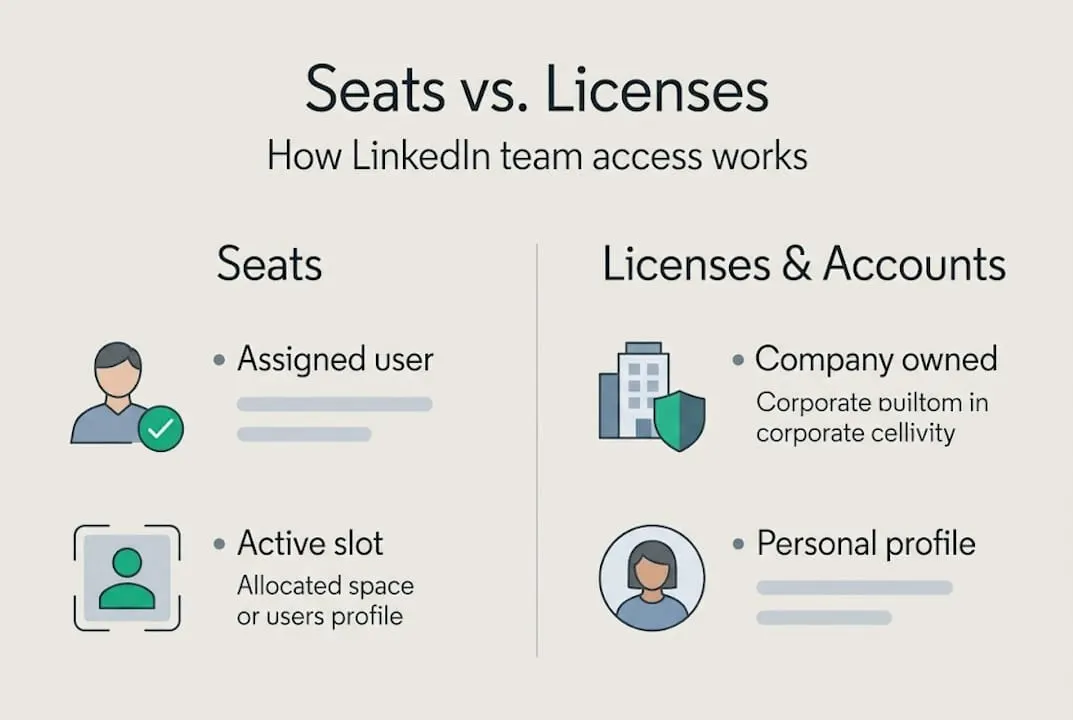
Licenses, on the other hand, are the underlying entitlements that your organization purchases. A license is what you buy. A seat is what you assign. You might purchase five licenses and assign them as seats to five sales reps. If a rep leaves, you can reassign that seat to someone else without buying a new license. This flexibility is exactly where many teams leave money on the table by treating the two terms as interchangeable.
For B2B team budgeting, understanding this difference is critical. If your team thinks seats and licenses are the same thing, you may end up buying more licenses than you need or failing to reassign open seats when roles change. Either way, you are spending money without getting full value.
| Term | What it is | Who controls it |
|---|---|---|
| Seat | Assigned user slot on a plan | Admin assigns to team member |
| License | Purchased entitlement | Billing/procurement team |
| Account | LinkedIn user profile | Individual user |
Pro Tip: Before your next renewal, ask your admin to pull a seat utilization report. You may find seats sitting idle that could be reassigned or eliminated to cut costs. You can also explore LinkedIn reseller savings to reduce what you pay per seat in the first place.
Types of LinkedIn seats: How teams assign and use them
Once you understand what a seat is, the next step is knowing which type of seat fits your team’s needs. LinkedIn Sales Navigator currently offers two main plan tiers that affect how seats are structured and what each user can do.
Core seats give individual reps access to advanced search, lead lists, and InMail. They are designed for solo prospectors or small teams where each rep works independently. Advanced seats add team collaboration features, including shared accounts, TeamLink (which lets reps see mutual connections across the team), and usage reporting for managers.
Here is a quick breakdown of what each seat type includes:
| Feature | Core seat | Advanced seat |
|---|---|---|
| Advanced lead search | Yes | Yes |
| InMail credits | Yes | Yes |
| TeamLink | No | Yes |
| Shared account lists | No | Yes |
| Admin usage reports | No | Yes |
| CRM sync | Limited | Full |
Admins assign seats through the Sales Navigator admin portal. The process is straightforward: you invite a user by email, assign them a seat type, and they activate access within 24 to 48 hours. You can also reassign seats when reps change roles or leave the team.
Common team configurations include:
- Five seats for five dedicated outbound reps
- A mix of Core and Advanced seats based on role (managers get Advanced, individual contributors get Core)
- Rotating seats for part-time prospectors or contract reps
The rotating model is underused but powerful. If only three of your five reps are actively prospecting in any given month, you can rotate seats to match actual usage rather than paying for idle access. Team-based seat assignments allow organizations to optimize workflows and reduce spending per user, which is especially valuable for lean B2B teams.
Pro Tip: Use Advanced seats for team leads or managers who need visibility into rep activity, and Core seats for individual contributors focused on outreach. This tiered approach keeps costs down without sacrificing capability. Pair this with a solid prospecting workflow to get the most out of each seat. A repeatable sales system also helps your team stay consistent regardless of how seats are configured.
LinkedIn seats vs. licenses vs. accounts: A practical comparison
Industry jargon creates real confusion here, and that confusion has a price tag. Many businesses confuse seats with licenses, which can lead to overpaying or underutilizing Sales Navigator access. Let’s clear this up with plain definitions and real scenarios.
Seat: The active user slot. One seat equals one person actively using Sales Navigator at any given time. Seats are assigned, not purchased individually.

License: The purchased entitlement your company holds. Think of it as the right to activate a seat. You can own a license without having it assigned to anyone.
Account: The individual LinkedIn profile. Every user has one, whether they have a seat or not. A free LinkedIn account does not grant Sales Navigator access.
| Concept | Controls | Billed? | Transferable? |
|---|---|---|---|
| Seat | Feature access per user | Included in plan | Yes, by admin |
| License | Right to assign a seat | Yes, per license | Yes, via reassignment |
| Account | Profile and connections | Free or premium | No |
Here is when each decision matters for your team:
- Buy additional licenses when your team is growing and you need more people actively using Sales Navigator at the same time.
- Reassign existing seats when a rep leaves or changes roles. No new purchase needed.
- Audit unused accounts to find team members who have seats but rarely log in. Reassign those to active reps.
- Explore reseller options to reduce the per-license cost before adding seats. Understanding the difference between seats and licenses is the first step toward smarter purchasing.
For small B2B teams, the practical takeaway is this: you almost never need to buy a new license when a seat goes unused. Reassign first, purchase second. This mindset alone can save hundreds per year. Strong client acquisition strategies also depend on having the right number of active seats, not the maximum number of licenses.
How to maximize value: Seat management and common pitfalls
Buying seats is the easy part. Getting full value from them is where most teams fall short. Standardized seat management can prevent lost savings and ensure every license delivers ROI.
Here are the best practices that actually move the needle:
- Audit seats quarterly. Check who is logging in, how often, and what they are doing. Inactive seats are dead weight.
- Reassign promptly. When a rep leaves or shifts to a non-prospecting role, reassign that seat within the same billing cycle.
- Match seat type to role. Don’t pay for Advanced seats when Core seats cover the job. Align features to actual needs.
- Document your seat map. Keep a simple spreadsheet showing who holds each seat, their role, and last active date.
- Set quarterly review reminders. This one habit prevents most seat-related waste.
The top pitfalls teams fall into are predictable. Unused seats are the biggest one. A rep gets promoted, stops prospecting, but keeps their seat for months. That is a direct budget leak. Overlapping licenses happen when teams buy new licenses without checking if existing ones can be reassigned. Failing to monitor seat activity means managers have no visibility into whether the investment is paying off.
“Treat your seat allocation like a sales territory map. Review it regularly, adjust for what’s actually happening in the field, and never let it go stale.”
Pro Tip: Set a recurring calendar reminder every 90 days to review your seat map. Cross-reference it with your streamlined prospecting workflow to make sure active seats are tied to active pipeline stages. Use B2B sales solutions designed for smaller teams to keep this process simple. Aligning seat reviews with sales pipeline stages gives you a clearer picture of where seats are actually generating revenue.
Why most teams overlook seat flexibility—and what that really costs
Here is something we see consistently: B2B sales teams treat seat allocation as a one-time setup decision rather than an ongoing strategy. They assign seats at onboarding and never revisit the structure. That rigidity is expensive.
Seats do not have to be static. You can rotate them seasonally, pool them across departments, or adjust based on campaign cycles. A team running a heavy outbound push in Q1 might need six active seats. In Q3, when focus shifts to account management, four seats might be plenty. Treating that as a fixed number means paying for two idle seats for six months.
The real cost is not just the wasted spend. It is the missed opportunity to invest those savings into more smarter B2B prospecting tools or additional outreach capacity. We have seen teams waste over $2,000 annually on unused seats simply because no one was assigned to review the allocation.
Revisit your seat strategy quarterly, not just at renewal. That single habit pays for itself.
Unlock smarter team access to LinkedIn Sales Navigator
Understanding seats is only half the equation. The other half is making sure you are not overpaying for them in the first place. SalesNavSplit gives B2B sales teams access to official, discounted LinkedIn Sales Navigator seats at roughly 50% off standard pricing, sourced through verified reseller partnerships in the US and Europe.
Every seat is genuine, secure, and compliant with LinkedIn’s terms of service. Activation takes 24 to 48 hours, billing runs through Stripe, and setup is simple. If you want to stretch your sales budget without sacrificing access to premium features, the SalesNavSplit Chrome Extension also helps teams share and optimize seat usage across the whole group. Smarter seat management starts with smarter purchasing.
Frequently asked questions
What is a LinkedIn seat and how is it different from a license?
A LinkedIn seat is a specific user’s access slot on a premium Sales Navigator plan, while a license is the underlying entitlement that can be assigned to different users. As clarified in the Sales Navigator guide, a seat grants premium access per user, distinct from generic licenses.
How can my team save money on LinkedIn Sales Navigator seats?
Teams save by auditing seat usage regularly, reassigning idle seats, and using resellers for group discounts. Confusing seats with licenses, as noted in the LinkedIn reseller guide, often leads to overpaying or underusing what you already have.
Can LinkedIn seats be reassigned if a sales rep leaves the company?
Yes, admins can reassign any seat to another team member at any time through the Sales Navigator admin portal. Team-based seat assignments are designed specifically to let organizations adapt without buying new licenses.
What’s the risk of buying too many LinkedIn seats?
Unused seats drain your budget with no return, and the problem compounds over time. Standardized seat management is the most reliable way to prevent wasted licensing fees and keep every seat tied to active revenue activity.